
Alpaca Benro Polaris V2.0 – Installation

Here is a step-by-step installation of the Alpaca Benro Polaris V2.0 (ABP). Since its release, I have installed it along with N.I.N.A, Stellarium, ASCOM 7.1 on a desktop computer, a laptop, and a mini PC. I am not a Mac user, but I expect the process is similar. This post addresses ABP installation on Windows-based systems. This article should help navigate the installation of ABP. For troubleshooting, I highly recommend reviewing the GitHub documentation. The ABP is very well documented. A separate post will cover installing N.I.N.A, ASCOM, and other applications.
Quick Disclosure (Before We Get to My Compulsive Gear Opinions) This post may contain affiliate links to Amazon, Focus on Stars, LRTimelapse, Benro, and Bolt Hunter. If you grab something through them, I might earn a small commission — basically charity for a gal who owns way too many tripods, still drops half of them in the field, used to spend hours hunting for perfect focus in the dark, and misses lightning bolts with embarrassing regularity. No extra cost to you..
As an Amazon Associate, I earn from qualifying purchases. Same deal with Focus on Stars (the diffraction filter that actually lets me nail focus instead of guessing), LRTimelapse (my only defense against total time-lapse disaster), Benro (steady support for my wobbly existence), and Bolt Hunter (the predictive trigger that catches strikes even when my reflexes don’t). I only recommend stuff I actually buy myself and use… even if I use it poorly sometimes.
Your support helps fund more ridiculous experiments in the dark. High five (or whatever I can manage without knocking the camera over).
The Hardware
These are the systems I have used to test the ABP. The laptop will be used for location shooting. Mini PCs are commonly used for telescope control and come in handy for the Benro Polaris, too. All three have ABP installed. They can operate the Benro Polaris independently or as the primary driver, remotely accessed by other PCs or mobile devices.
- Lenovo Legion T5 desktop computer, Windows 11 PRO
- Lenovo V15 G2 laptop, Windows 11 Home
- Mini PC – GMKtec Mini PC Gaming, K6 AMD Ryzen 7 7840HS Windows 11 PRO
Mini PCs run the gamut in types, power, and price. I chose a unit with a fan because I do not plan to mount it on the same tripod as the Benro Polaris Astro, so introducing vibration is not a concern. If your goals include a Mini PC, consider how you will mount and power it. If you want to keep it simple and have the unit on the same tripod as the Benro Polaris, then fanless would be the way to go. Consider the applications, too. If you are planning on stacking images on the Mini PC, horsepower and memory are considerations. The more powerful the processor, the hotter it will run. I chose the GMKtec after weighing the options of fanless vs fanned units. Basically, a fanless unit can be powered by a power bank; a fanned unit needs a more substantial power feed. Check out the Cloudy Nights forums for information about the unit you have in mind.
For location shoots, I will power the GMKtec with a Jackery battery such as this one. It can be solar-charged and can power my rig for hours. Using a Mini PC frees you up. It lets you remotely control the installed applications by using Remote Desktop. Be sure the unit you decide on is installed with Windows 11 Pro. Only the “Pro” editions of Windows can be accessed remotely. We will get into the nitty-gritty of this, too.
Miscellaneous Items
- TP-Link AC600 USB Antenna (required)
- Optional: USB-C to USB-A cable to connect my Nikon Z9 camera to the PC. (A camera cable is needed if you are using N.I.N.A. for camera control, otherwise, you can skip this. Use the proper cable for your camera.) Tethering applications are also an option for image capture if you are using the Alpaca Pilot only.
Most WiFi adapters in computers have issues connecting to the Benro Polaris. A separate unit resolves the issue. The plug-in WiFi antenna communicates with Polaris, and the built-in WiFi can access the internet via your home WiFi or mobile hotspot. The secondary connection is helpful for GPS coordinates and more.
Set up the Software
ABP
On your computer, be sure Bluetooth and WiFi are enabled.
Download Python 3.13.9 from the Python website. Run the installation file downloaded. Be sure to check the field Add python.exe to PATH, then tap Install Now.
Download Alpaca Benro Polaris V2.0. The application is on GitHub. https://github.com/ogecko/alpaca-benro-polaris Page down to get to the links and installation instructions. Unzip the application ABP to your Documents folder. Go to the new folder in your Documents folder and right-click on the folder name.
Select Open in Terminal and type “pip install -r platforms/win/requirements.txt” in the terminal window. You can copy and paste the text in the quotes and paste it as I did below.
Next, in Windows Explorer, navigate to the ABP folder.
Right-click on the driver folder and select “Open in Terminal,” and type “python main.py“
Don’t worry if it appears to stall or be stuck. Once it has fully initialized, it will look like this:
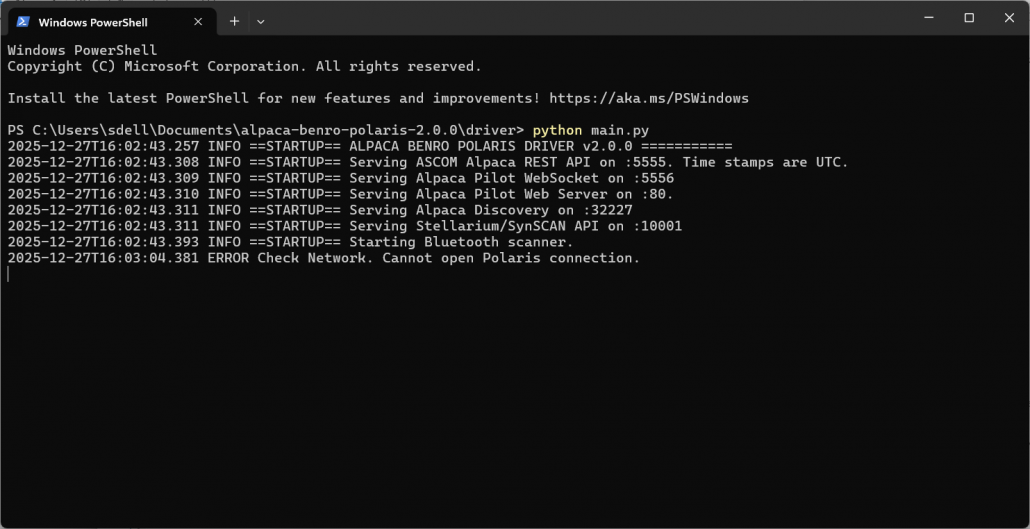
You can create a shortcut to start the terminal session automatically by double-clicking the shortcut (see the instructions on the GitHub page), or you can start up the driver each time by starting the terminal session as described above.
Connecting to the Benro Polaris
I set the Benro Polaris facing south at 180 degrees and level it as best as possible. Level is critical for good imaging results. Use a bubble level to help you level the Benro Polaris. There are free apps that do a great job. You can also use a physical bubble level.
Once the ABP driver has been started and the secondary WiFi plugged in and enabled, turn on the Benro Polaris. Go to your computer’s WiFi and select the USB Wifi to connect to the Benro Polaris.
Check your terminal window. It provides the communication log between the ABP and Benro Polaris. If there is an issue, insights into fixing the problem can be found there.
You no longer need the Benro Connect app to control the Benro Polaris for the Astro mode. The app is still required for all other photography modes.
Alpaca Pilot
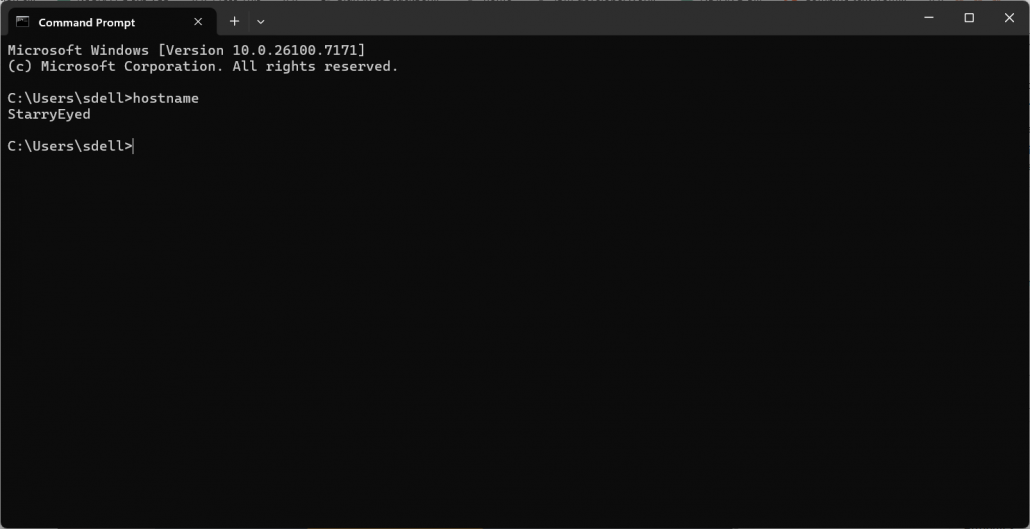
Open a browser and type http://hostname (your computer’s name). You can locate your computer’s name by going into settings or opening a command prompt window and typing ‘hostname’ and pressing enter. To open a command prompt window, type CMD in the search bar at the bottom of your screen.
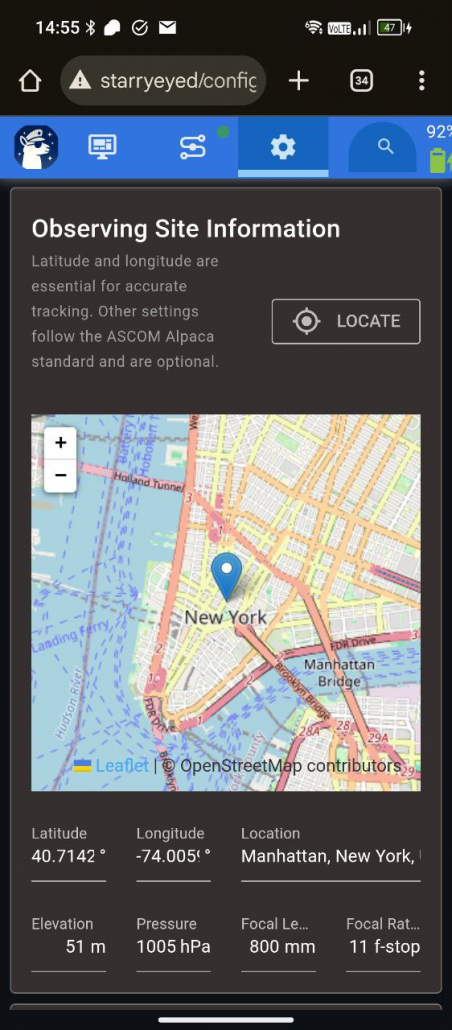
Upon initiating Alpaca Pilot for the first time, it needs Observing Site Information (aka GPS coordinates). Since the computer is also connected to the second network connection, in my case, WiFi, tapping on “locate” reads the network’s location and sends the GPS coordinates to the Benro Polaris. Tap “Save”.
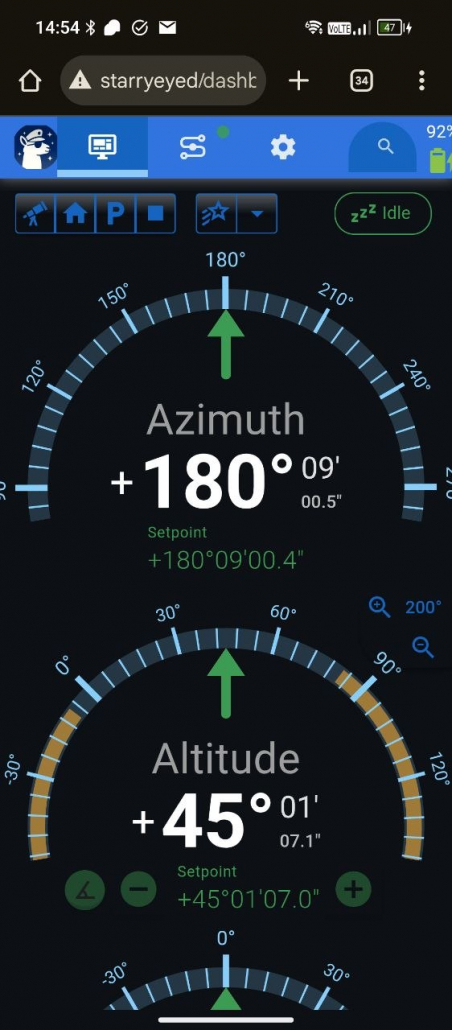
The Alpaca Pilot provides a lot of information. The battery level of the Benro Polaris, charging status, location, L-bracket use, and much more. You can also place the Benro Polaris in Park mode, so you can resume where you left off.
Using this application is straightforward. It is well organized and very intuitive to use. Once the Benro Polaris is connected to WiFi, all you need is this app to surf the sky.
Note: If you go to a different location, be sure to update the Observing Site Information by tapping on the Settings tab before doing anything else. Pay attention to the information in the orange bar and follow the steps it is requesting.
When slewing to an object, be certain to take note of where it is in the sky. If it is +/- 80 degrees overhead, beware. It will cause the head to stall. This is not due to the ABP but because the Benro Polaris is an Alt/Az mount.
The Alpaca Pilot has a great catalog of objects to choose from.
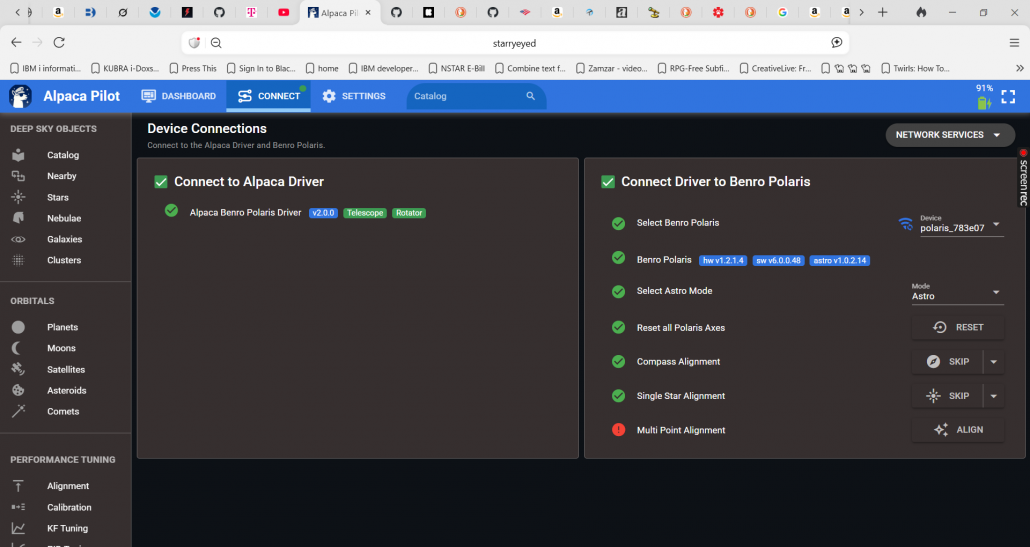
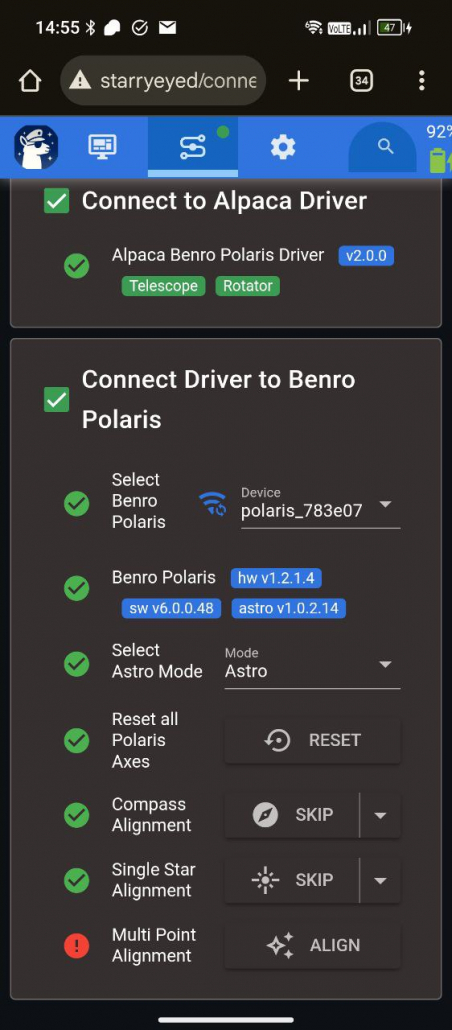
If the Benro Polaris is turned off, the next time you go into the Alpaca Pilot, it will request that you set the mode to Astro and reset all the Axes. Select the Mode from the drop-down and step through the resets below it. Don’t rush through the resets. The Benro Polaris is working, so be sure to wait for it to complete the current step.
Desktop Stellarium
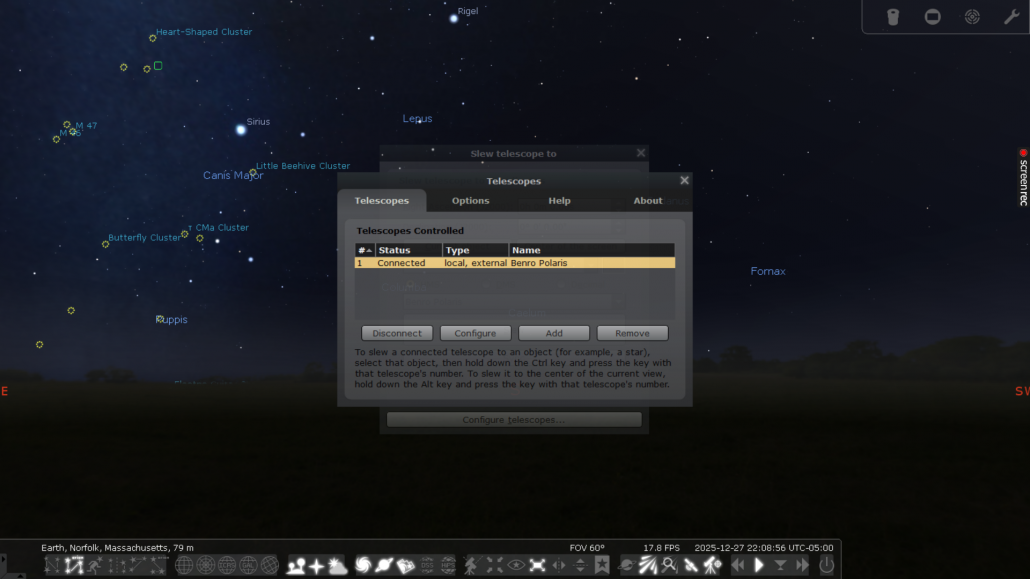
Download and install the Stellarium client and launch it.
Tap on the telescope icon. Hovering over the bottom of the screen displays the options.
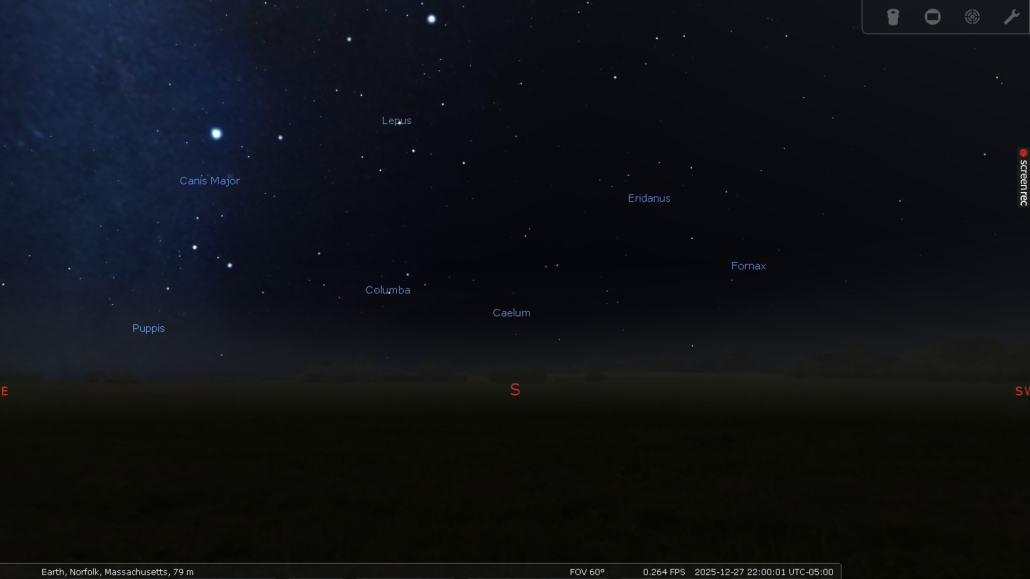
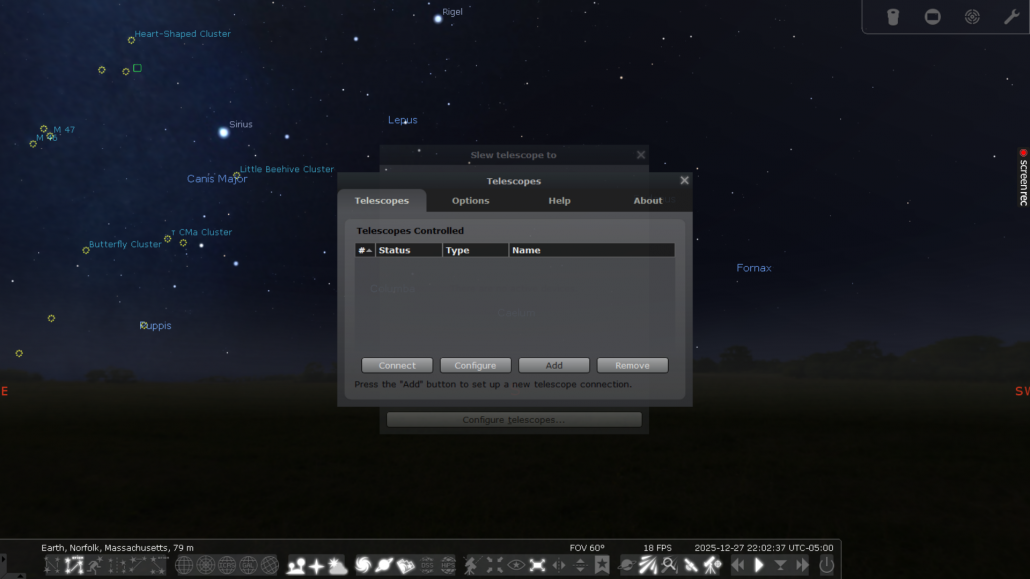
Tap on Add.
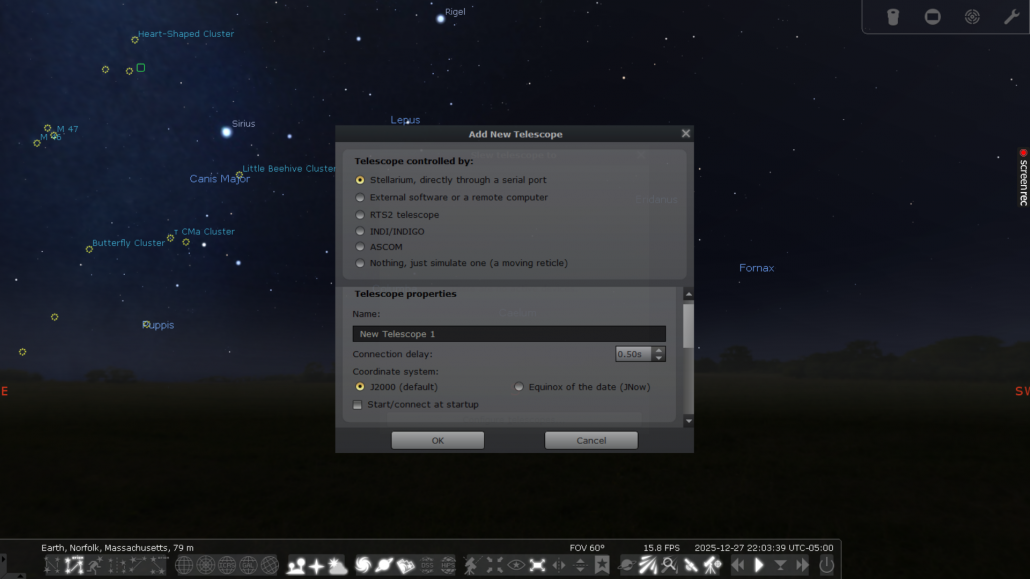
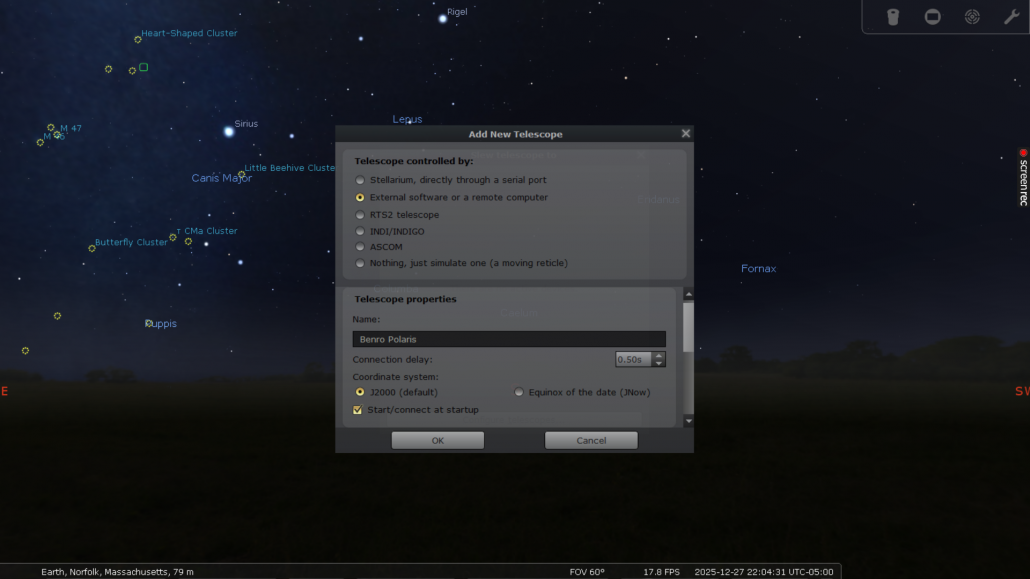
Tap “External software of Remote Computer” and give it a name. Tap “OK”.
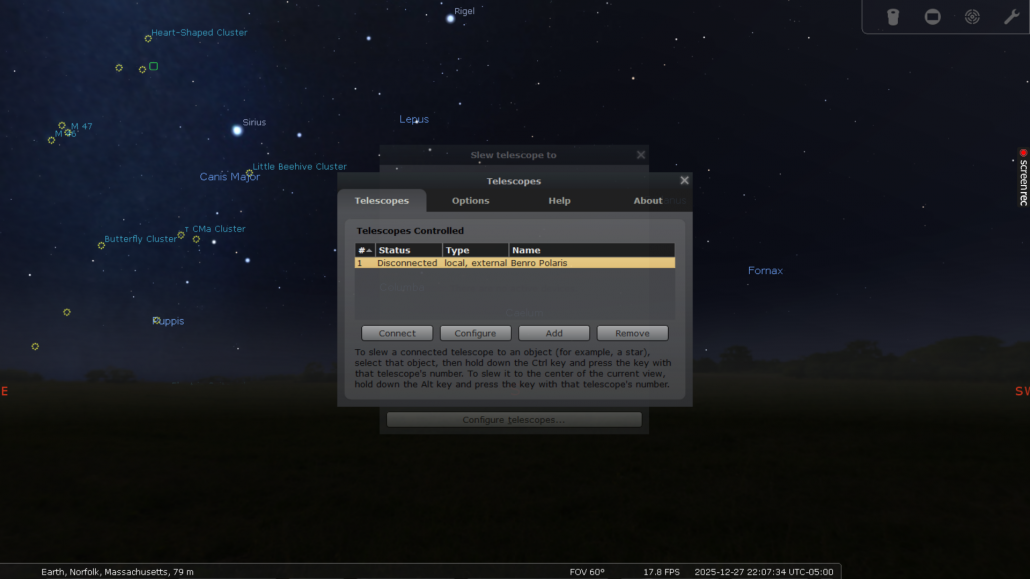
Select the listed telescope and tap “Connect”. It is now ready to go.
Connect with your Mobile Device
Once Alpaca Benro Polaris is active on the computer, you can connect to it using your phone or tablet. Open a browser and type http://hostname (your computer’s name). The same functions are available as they appear on your computer’s browser. The screenshots are from an Android device.
Sky Safari Plus/Pro
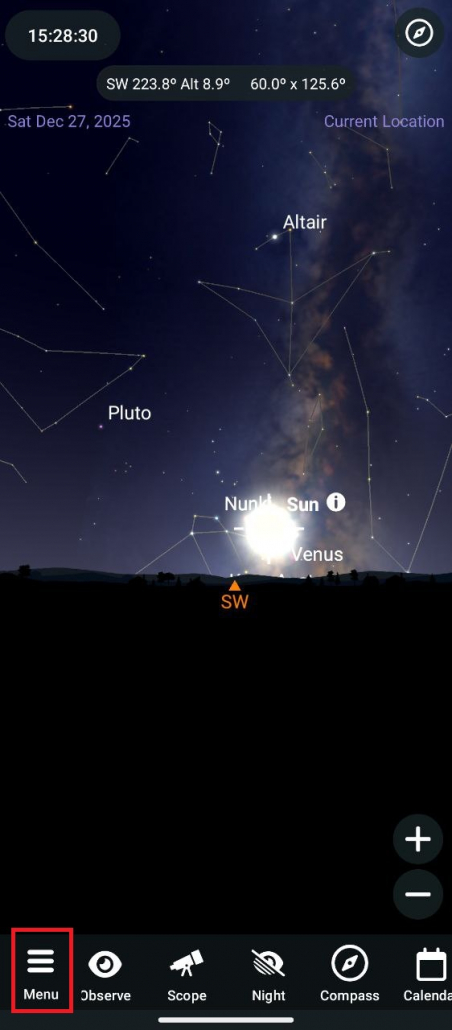
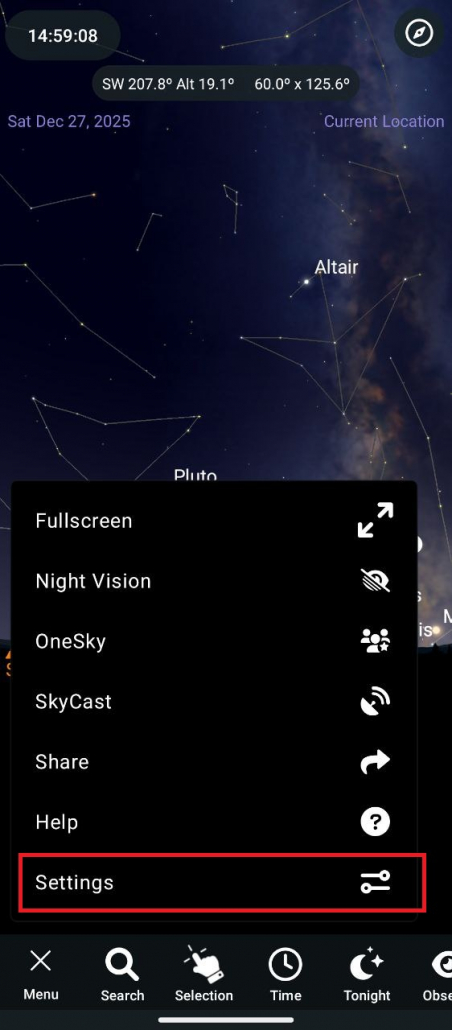
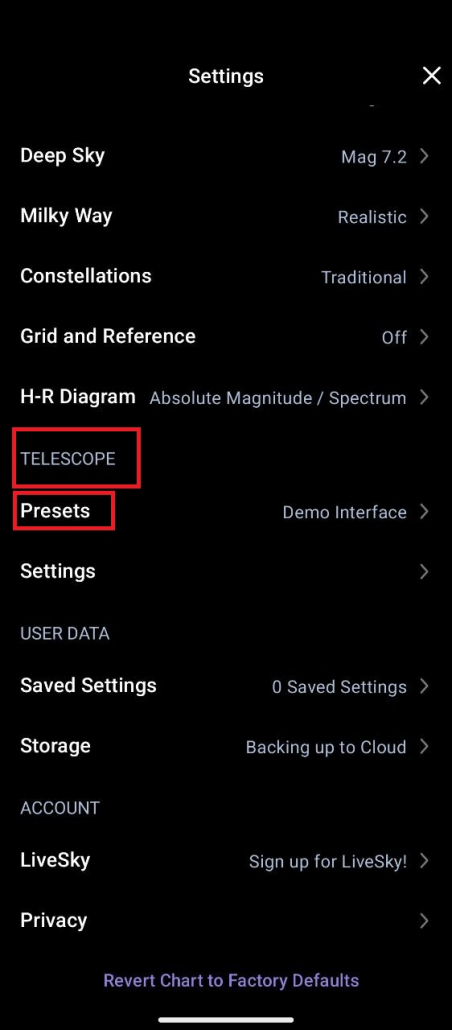
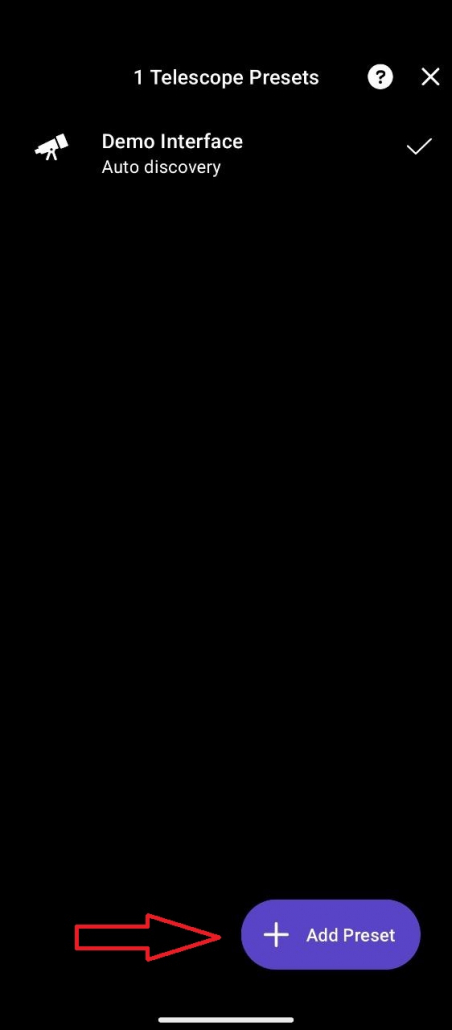
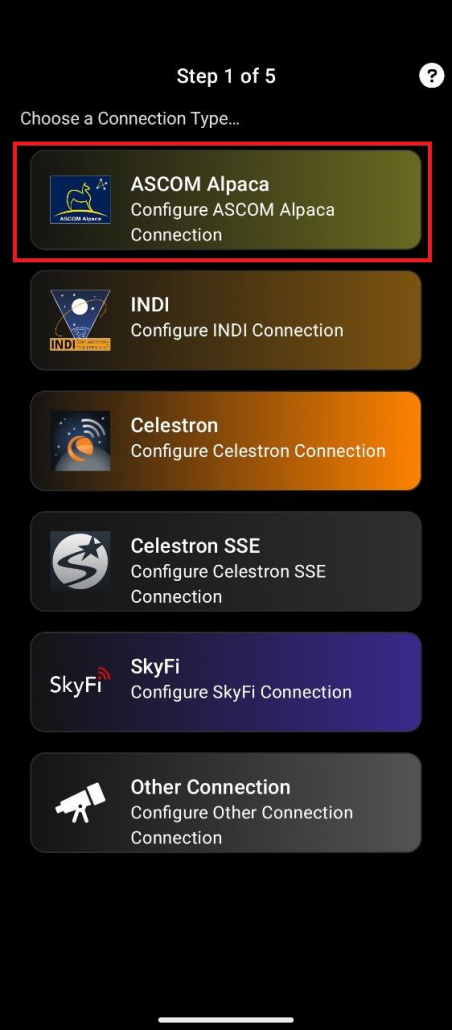
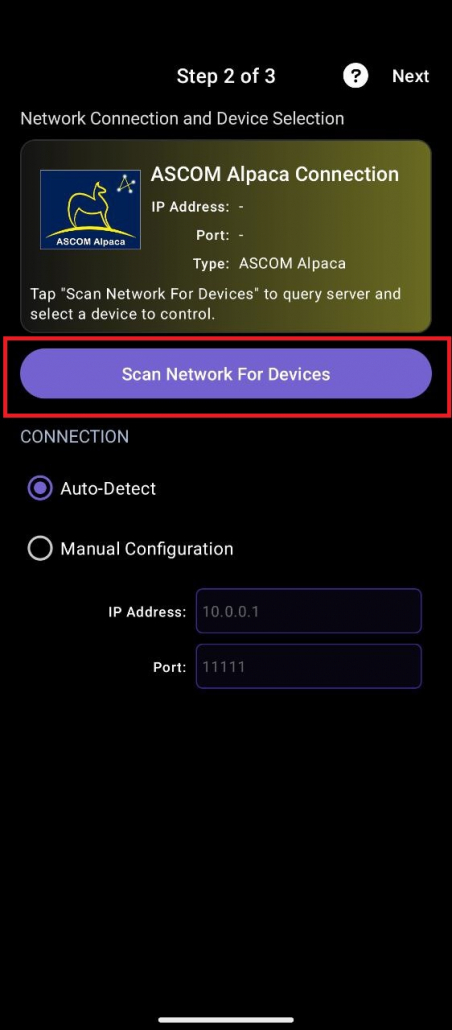
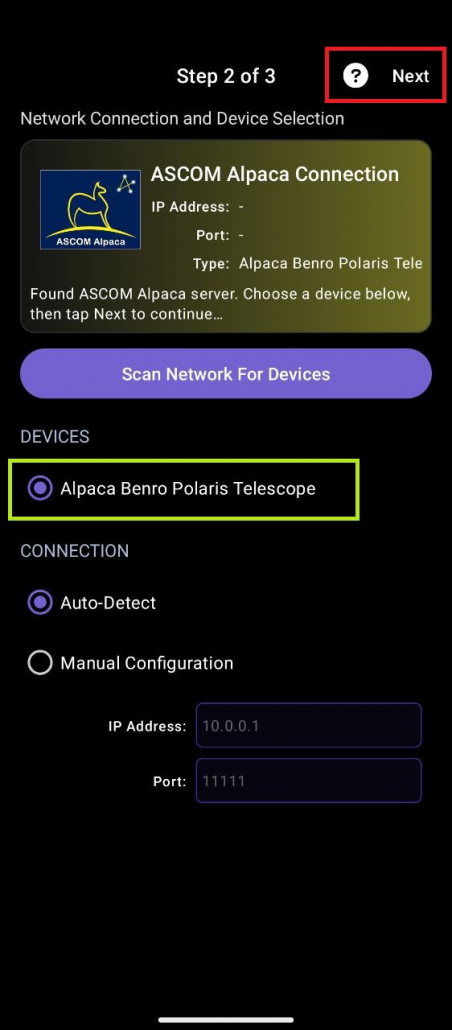
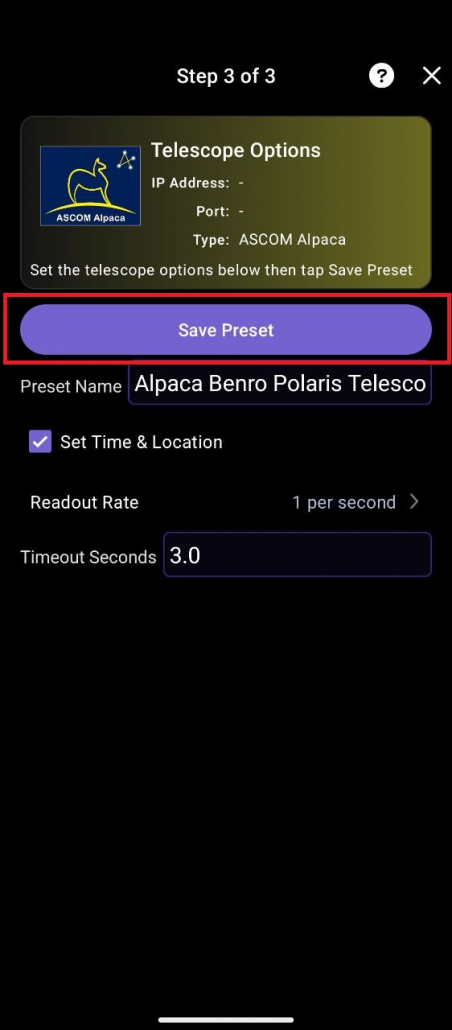
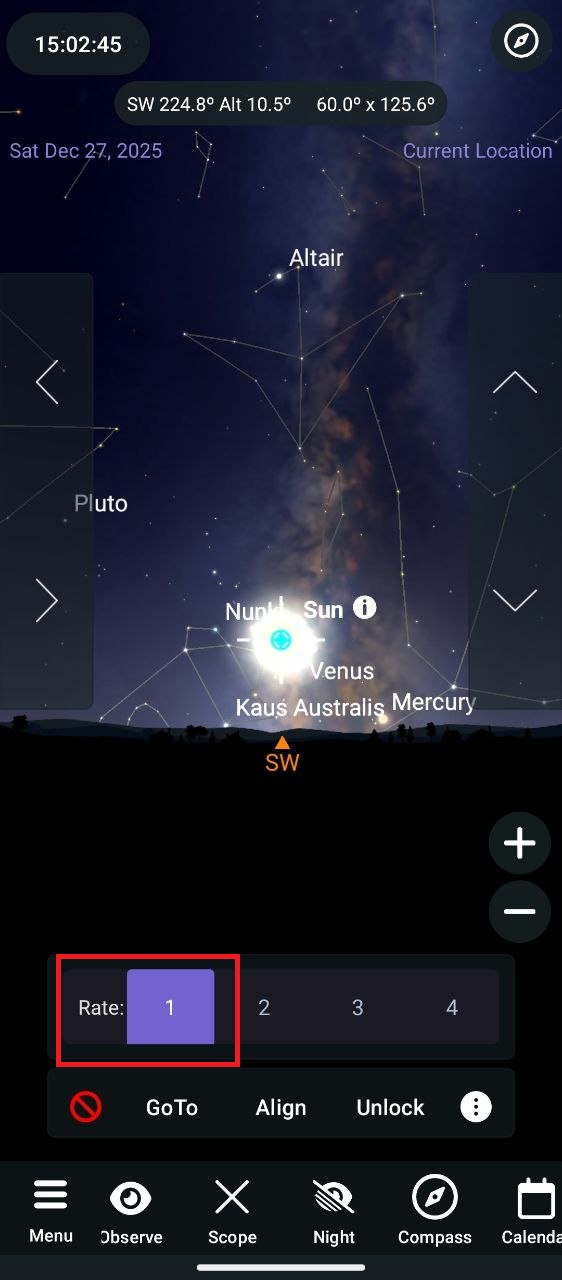
You can also configure Sky Safari Plus/Pro to use the ABP. Follow the steps below. Be sure to change the Slew Speed to 1 to protect the gears of the Benro Polaris (last slide). If Sky Safari is set to use the Alpaca Benro Polaris as the default, tapping on the telescope icon will automatically connect to it if it is available.
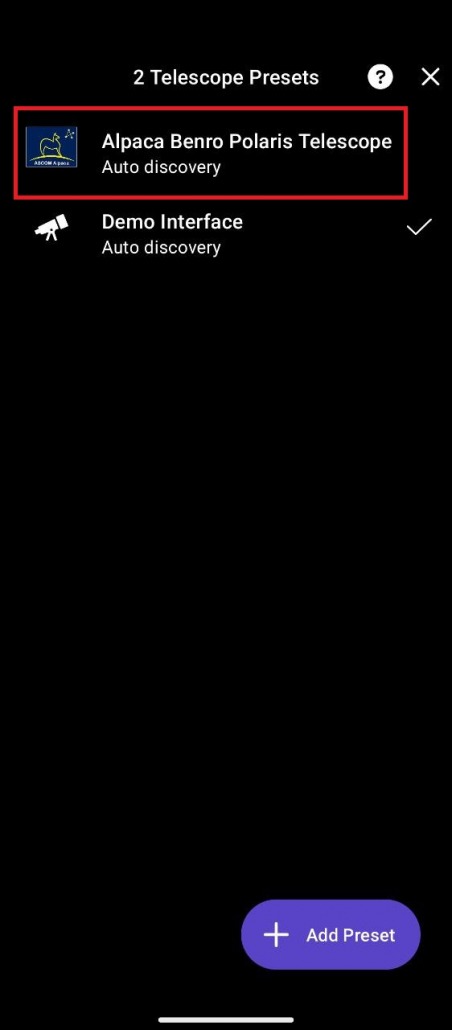
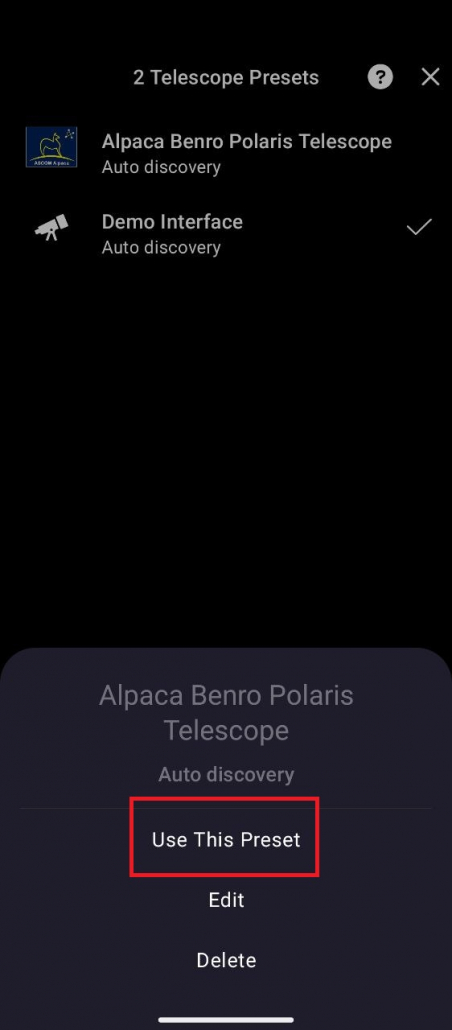
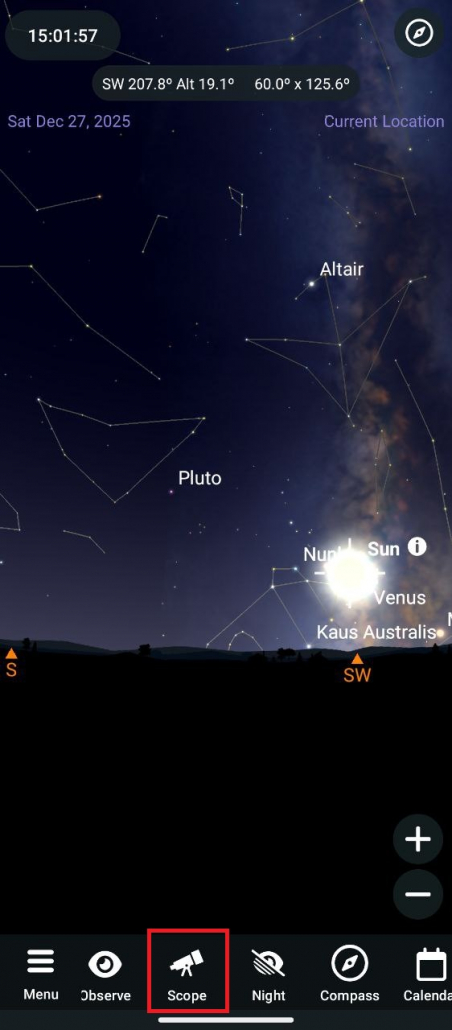
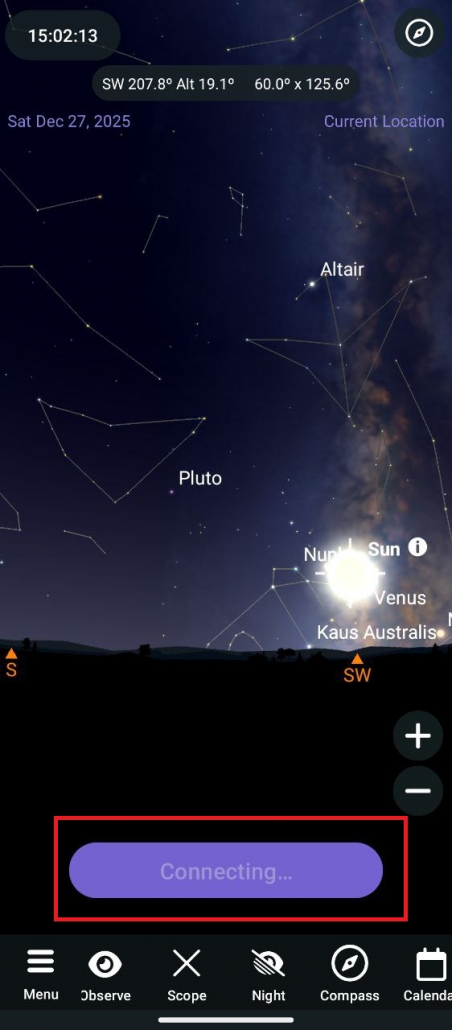
Remote Desktop Connection
If you set up a Mini PC, controlling it via remote access can greatly improve the experience. This feature is wonderful in the winter when it’s cold and in the summer when the mosquitoes are making a meal out of you. The setup and connection process is straightforward.
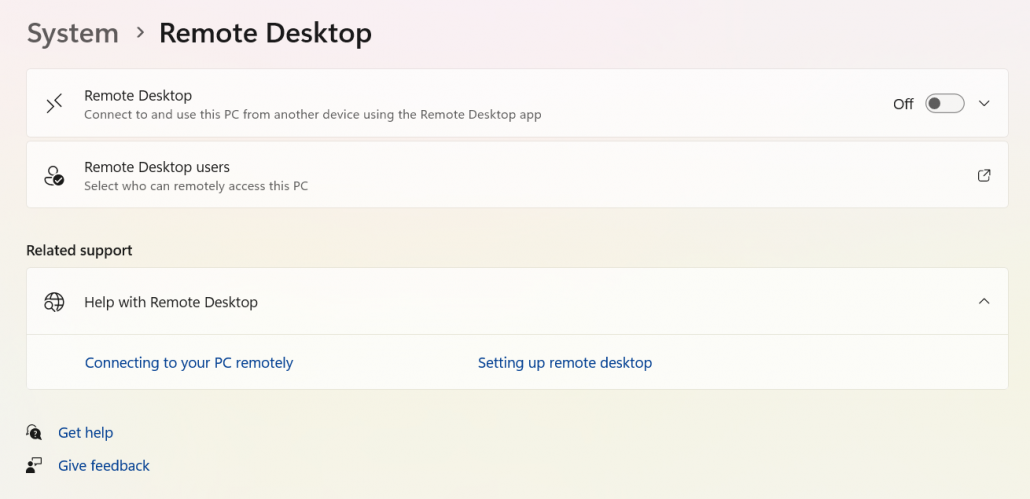
- On the machine you will be connecting to, go into the Remote Desktop Connection settings. The default is set to Off.
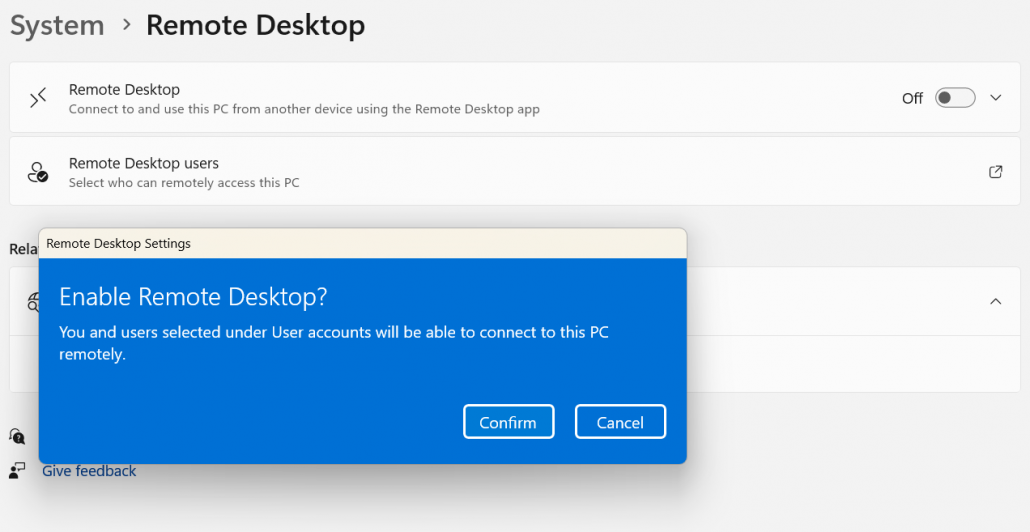
Enabling Remote Desktop throws a pop-up. Tap “Confirm”.
Once confirmed, the computer name is displayed.
To connect to it from a different computer, search for RDP on the connecting machine.
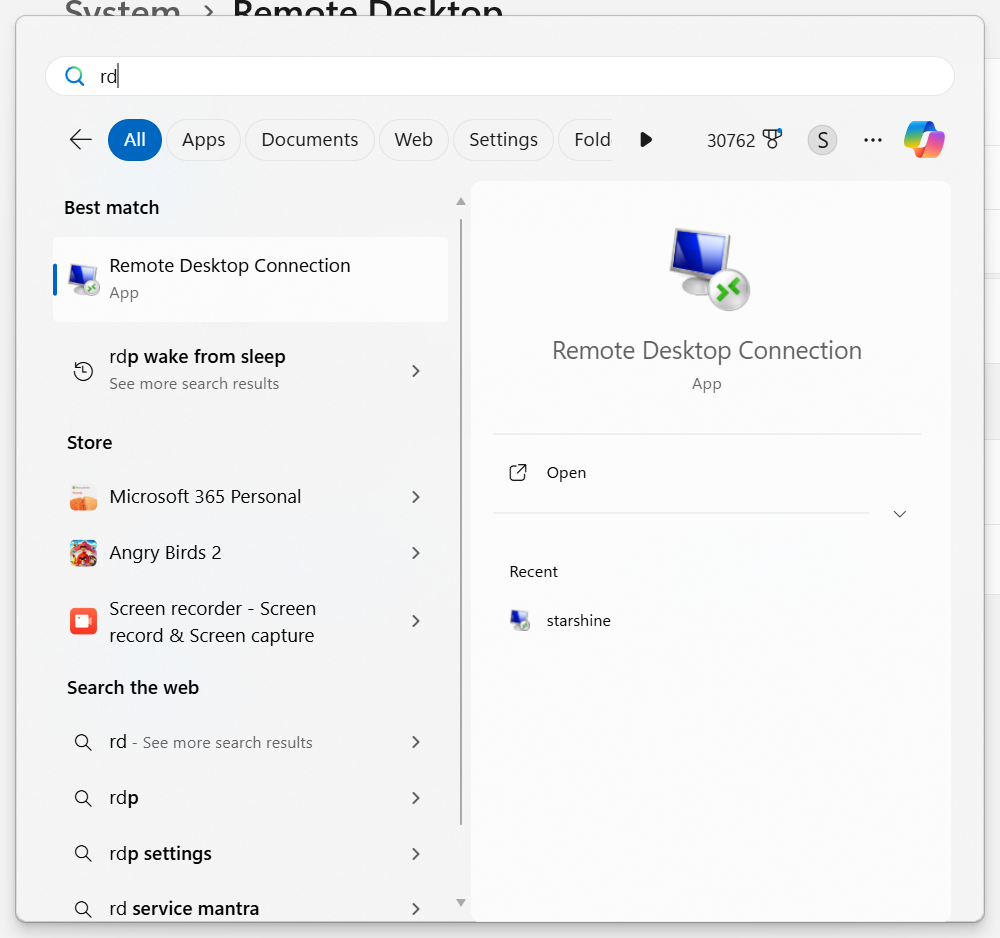
Here, I am connecting to the Mini PC
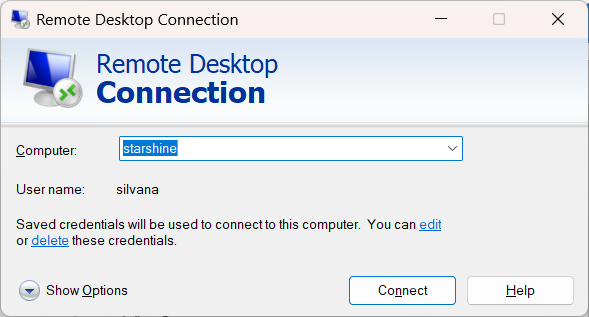
Enter the password and connect. You can choose to save the credentials or enter the password each time.
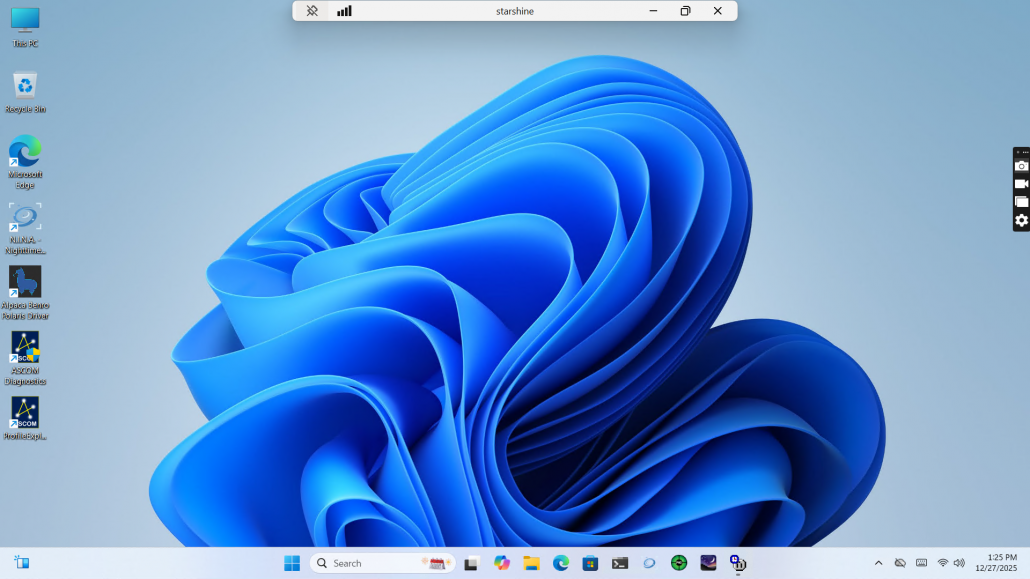
Note: Connecting from a Windows 11 Home system can be problematic. It is “supposed” to work, but I have had issues in the past operating systems, and apparently, it continues. Firewall and anti-virus software sometimes causes the problems, maybe… I opted to upgrade my laptop to Windows 11 Pro. Go to Groupon and search for Windows 11 Pro. You can pick up a license for around $11.00 (USD). For me, it was money well spent. Once I upgraded the OS, Remote Desktop had no problem connecting – even with the same firewall settings and anti-virus. Hmmmm
Conclusion
Installing Alpaca Benro Polaris is the first step to open up the Benro Polaris Astro to the world of ASCOM-based astronomy software.
Take it step by step and don’t rush through. If you are new to astronomy software, take it slow and learn to navigate ABP. It will make the next level easier. ABP is the foundation. Plate solving and imaging through N.I.N.A. is the next step.
You can still image without N.I.N.A. running. Set your camera to shoot 30 to 60-second subs. Use live view and work from there.
Also, check out the documentation and videos regarding performance tuning.
ABP V2.0 truly made the Benro Polaris Astro an even more outstanding tool. I am delighted to have backed the ABP V2.0 Kickstarter project.
Clear skies!
Alpaca Benro Polaris V2.0 First Look
Night Shades – A Guide to Photography after Dark
Sights Beyond the Spectrum – An Infrared Photography Handbook
Master the Benro Polaris: The Ultimate Handbook for Photographers and Astrophotographers
© Silvana Della Camera
Join the Night Sky Newsletter
Exclusive astrolandscape tips, infrared secrets, and early workshop alerts.
To learn about upcoming workshops and tips on photography, consider subscribing to my website.
Taking photos and want to make them more compelling?
Art isn’t just for walls. Art is also to hold in one’s hands.









Trackbacks & Pingbacks
[…] Here is the third installment of using the Alpaca Benro Polaris V2.0 (ABP). A mini PC offers portability and powerful applications anywhere you go, but unlike a laptop, which has a built-in battery, a source of portable power is required. This post specifically addresses setting up a mini PC to control the Benro Polaris in the field, using a travel router and tapping into a cell phone’s hotspot. There are many ways to power a mini PC. AC power is the easiest and most convenient, but there are other methods to power it when AC power is not an option. To install ABP, please refer to this post. […]
[…] Alpaca Benro Polaris V2 – Installation […]
Leave a Reply
Want to join the discussion?Feel free to contribute!